CSE 140L Lab 1, Part 1 - Basic Combinational Circuit Tutorial
Spring 2009, Professor Cheng, TAs Thomas Weng, Renshen Wang, Chengmo Yang, Mingjing Chen
In this tutorial you will learn how to use the Altera Quartus II software and how to design some basic combinational logic with the program. You will also learn how to program your FPGA board with the program and your computer. You will need this knowledge for future labs. Also, it is very useful to see practical uses for the material covered in this class.
Prereqs: You should know what an "output" is and what an "input" is for a given logic circuit, and you should know how to go from a truth table to a corresponding combinational logic circuit. You also should know what some basic logic components are, such as AND, OR, and NOT gates, as well as what an ADDER and MULTIPLEXOR is. You should be able to look at a basic combinational logic circuit and not go "what are all those triangles?" Also you should know what it means to be logic high and logic low (which of course means 1 or 0). If any of these terms are confusing, please review the book, lecture notes, review CSE20, or come see the TAs or professor!
All this is covered in the book as well as the first few lectures of class. Please spend some time developing this basic level of understanding before proceeding. While we will hand hold you for this lab, you will gain much more if you can follow along and understand what you are doing. This requires very little preparation (and is required for CS140) so please do it! We will wait while you catch up!
Okay back? Let's continue! This tutorial will essentially be a step-by-step instruction for you, so you will not have to struggle much learning the tool. However it is strongly encouraged that you still gloss over the tutorials and instructions so you understand more in detail what your board is doing. Also, the lab questions at the end will test you on whether you actually understand what is going on. As everything is essentially given to you, please make sure you understand what you are doing. Future labs will not give you this level of step-by-step instructions.
Your very first circuit!
1. Here you will learn how to design a very simple combinational circuit that can do some very simple control on your board. You will also learn how to create a new project and how to download it onto your FPGA board. Before we begin, please make sure your jumpers are set correctly. The FPGA you are using is the Cyclone II EP2C20F484C7N for the DE1 board.
2. First go to File -> New Project Wizard. You will see a page prompting you for working directory, name of the project, and name of the top-level design
entitity. Let's name the working directory as \Lab1part1, the name of this project as lab1part1, and the top-level design entity as lab1part1. Go ahead and press next. On the
next page, the wizard will prompt you to add new files. Since there are none, just press next. On the next screen, you will select the family and device settings for the FPGA. First select the appropriate family. In our case, the FPGA we are using is a EP2C20F484C7N (for DE1 board) or EP2C35F672C6 (for DE2 board), and is part of the CycloneII family. So go ahead and select it, as so:

We do not need any other EDA tool, so go ahead and click Next on the following page. Finally it will show you a summary of your new project. Click on Finish. You now have a project!
3. First go to File -> New. You will see a menu with several options. Select "Block Diagram/Schematic File" under Design Files and press OK. You now have a schematic file called Block1.bdf open in front of you. This is where you will design your circuit.

4. In this tutorial, we will build a basic logic circuit to turn on and off the bottom segment of digit 0. We will use both push buttons to control the decimal point, specifically when buttons 0 and 1 are pressed, the decimal point will be off. If only one button or neither button is pressed, then the decimal point will be on. We will ignore buttons 3 and 4 for this lab. As mentioned previously, turning off a segment happens when you set that segment to high, and turning on a segment happens when you set that segment to low.
5. Now that we know what we want our circuit to do, let's design it. We have two inputs (button 0 and button 1) and we will lay that first. Click on the AND gate symbol on the left of the block schematic and you should see the Symbol Menu. Under Libraries, open up Primitiaves and then the Pin subfolder. You should see three types of symbols, bidir, input, and output. What we want is input for now, so click on input and press okay.

6. Now place the input pin on the left of the schematic. Since we have two inputs, do this twice. Now we should have two input pins on the left of the schematic. We now need to rename these input pins however. Double click on the pins and rename them to button0_input and button1_input. Save your .bdf file.

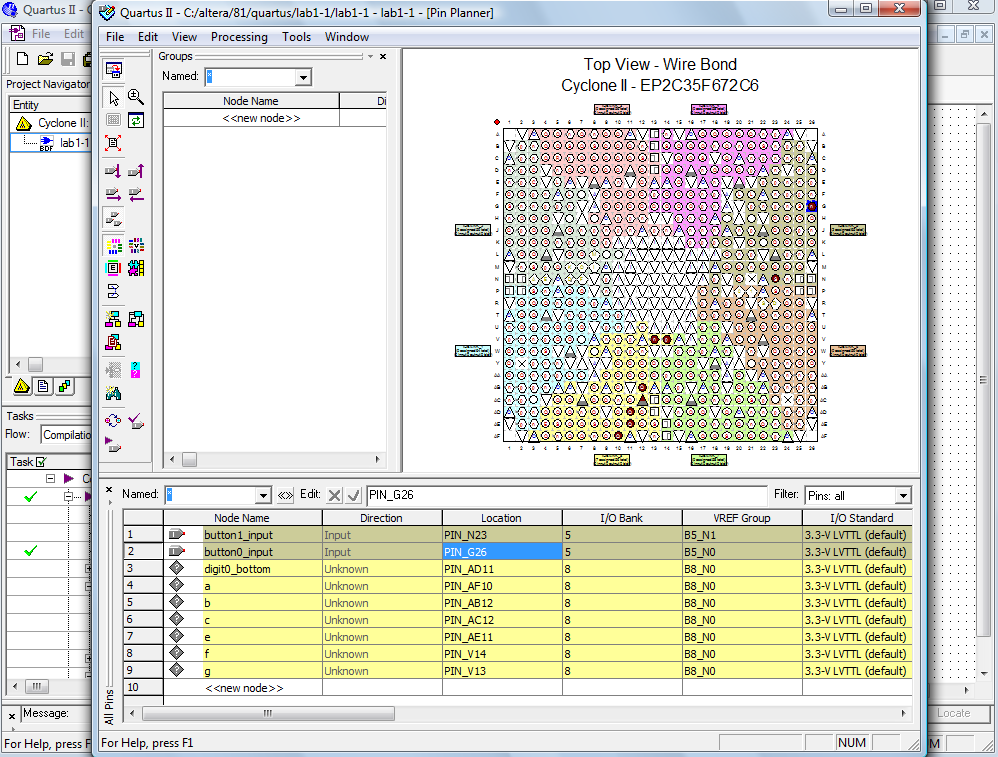
7. We now assign them to the proper ports on the FPGA (right now, these are just empty input pins, connected to nothing. We need to tell the FPGA which pins these actually are). We now assign the pins to the proper port on the FPGA. Right click on the input pin and go down to Locate, and then click on Locate in Pin Planner. You should see the pin planner screen, which lets you assign the location to each of your pins. In the button0_input row, double click on the Location column. You should see all the pin numbers for your FPGA. Your DE1 manual lists the the port names of the FPGA. Go to page 29 of your manual and you can see the pin assignments for every input and output on your board. This is important so make sure you understand it. We see that KEY[0] (which is button 0) has a pin number of R22, and KEY[1] (which is button 1) has a pin number of R21, so we go down the list and assign the input with its respective pin number. The DE2 has different numbers, pin G26 for button 0 and pin N23 for button 1, so if you are using the DE2, you would put that instead. So if you are using the DE2 (which you probably aren't) button 0 is pin G26, and button 1 is pin N23, so change the value in the location column to reflect those pins numbers. Do this for both inputs. If you are using the DE1, then obviously you would want pin R21 and pin R22. Note: when you are trying to find your pin, if you press the letter it starts with (e.g. 'R'), it will bring you to all the R pins. You can even type the entire thing as a shortcut.

8. Now let's bring out the output pins. We only have one output pin for this basic circuit, the Digit 0 bottom segment, so place an output pin on the schematic. Rename it to digit0_bottom. Right click on it again to go to "Locate in Pin Planner" and set the location for digit0_bottom. Refer to your instruction booklet to see the actual pin numbers for those segments on page 30 and 31. For the DE1 board, the digit0 bottom segment is pin H1. For the DE2 board, it is pin AD11.
9. Now we have our inputs and outputs placed on the schematic. We now need to add the logic gates to make our circuit work. We want the decimal point to light up when either both buttons are pressed, are neither button is pressed. If one and only one button is pressed however, the decimal point should not be lit. Let's draw out the truth table for this to see what we need done.
X Y | Output
0 0 | 0
0 1 | 1
1 0 | 1
1 1 | 0
From the truth table, it becomes clear that the output is simply equal to input 1 XOR input 2.
10. Go back into the symbol menu, and go under primiatives and then under logic. You will see many basic types of gates, such as AND, OR, and NOT gates. Go down until you find the XOR gate and place that on the schematic. Connect the two inputs into XOR gates by dragging the wire towards it. Likewise, connect the output to the XOR gate. Your basic circuit now is complete.

11. Now let's save our schematic.
12. Now we can start testing our schematic on our hardware board. Go to the Processing Menu and go to Start Compilation. It will start compiling your schematic and at the end should give you a sucessful screen. Note, if you have errors, read the error messages to see what the problem was.

13. The next step is to simulate our circuit and verify that it is working properly. We can do that by running simulations with Quartus II. Generally speaking, there are two types of simulations - functional and timing. Functional simulations pretend that the circuit has no delays, and thus everything happens simulatenously (i.e. when an input changes, the output changes at the same exact time). Timing simulations however take into consideration the delays that are inherent in a circuit. Both are important however to ensure your circuit works properly. Pages 20-25 of the Altera DE2 tutorial cover simulations in more detail, so check that out too.
14. Let's first do a functional simulation. Go to File -> New and click on the verification/debugging tab. Click on the last option, which is Vector Waveform File. You should see an empty waveform display. Double click the left panel (the one with Name, Value) and you should see a pop up menu. Click on Node Finder and in Filter, choose Pins: input. Click "List." Select both input pins and add to the right window. Click OK. Now you will see those inputs on the left panel. Double click on the left panel again and for Type, choose OUTPUT. Then go to Node Finder again and for Filter, choose Pins: Output. Click on List again and you should see a list of all the output pins. Click on digit0_bottom and click on OK (note we do not care about the other outputs).
15. You should now see 3 pins on the left panel. On the left panel, select button0_input and right click and go to Value -> Count Value. You will see a pop up menu, click on the Timing tab. Make sure your start time is 0, your End Time is 1.0 uS, Count every is 10 ns, and your Multiplied Value is 1. Do the same for the second input, but change the Multiplied Value to 2. Save your waveform file as lab1part1.vwf. Next go to Assignment -> Settings, and choose Simulator Settings. In the Simulation Mode drop down menu, change it to Functional. In the Simulation input, select the vwf file you just saved. Click OK.
Brief explanation: Count Value means the signal will be periodically switched between 0 and 1. "Count every" is the switching period; and if the "Multiplied by" value is 2, the period will be doubled. We give different periods for different input signals so that we can see the output behavior with various input signals. Essentially, we will get every possible combination of inputs on our timing and functional diagrams, and thus can see the output for every combination of input.
16. Next, go to Processing -> Generate Functional Simulation Netlist. Then once it is sucessful, go to Processing -> Start Simulation. You can see the simulation results (zoom in and out to get a better view of the waveforms by right clicking on the timing axis). You can see how changing the input values changes the output values. When one input is high and one input is low (corresponding to you pushing just one button), notice how the output to the decimal point is high (which turns it off). Likewise, when both inputs are high or both inputs are low (corresponding to you pushing both buttons or neither button), the output is low (which turns on the bottom segment).

17. Now let's try this with timing. Go back into Simulator Settings and change Simulation Mode from Functional to Timing. Change the Count Value for your two inputs so that the "Count every" is 100 ms now instead of 10ms. Then go to Start Simulation again. You will see a similar waveform, except this time you will see the delay in the output.

Note the tiny glitches in the timing diagrams. This is due to propagation delays in the logic and wires in the FPGA. Also you can see that the output is very slightly delayed from the inputs.
18. Congratuations! Now you have learned how to do basic functional and timing simulations with your circuit. Make sure you understand the overall design process with Quartus II. Future labs will depend on your ability to come up with a logical circuit and run it properly.
19. Now that we know our circuit is good to go, we can program our hardware board. Make sure your AC Adapter is connected and the board is connected to your computer! First turn on your board by pressing the red button. It will do it's cool startup sequence. Go to Tools and then Programmer. First click on Hardware Setup and select USB Blaster. Close the menu. Then check the Program/Configure checkbox. Now press Start. It might take a while to program your FPGA.
20. If you were successful, your board should be running. Because by default all the segments are low, they will all be lit red. Now let's test your digit 0 bottom segment. Press either button 0 or 1. The segment should be go off. Press both though and the decimal point should be red again. Press nothing and it will be on.
21. Congratulations! You have just finished your first circuit! But as mentioned above, the segments are lit red by default since an output of low turns on each segment. Let's update our circuit so that all the segments except our bottom is off for digit 0. We can ignore digit 1, 2, and 3. There are 7 output segments in all, and we already have 1 (digit 0 bottom segment), so we need to add 6 more output pins. Go ahead and place 6 more output pins on your schematic and rename them digit0_A, digit1_B, etc. Since the bottom segment we labeled "D", you should be skipping that. Set the pin assignment of each pin like before. The pin numbers for the segments are on page 30 and 31 of your instruction manual.
22. To turn off the segments, we want to send a value of "high" to these outputs. Therefore, find the VCC symbol (it is under Primitves/Other) and place it on your schematic. Connect this to each of the output pins.

23. Compile and program your FGPA board again with your new circuit. Ignore the warnings for now. Don't forget to save the updated schematic! The Segment Display will now all be off except your bottom segment. When you don't press anything, it will be on. If you press eihter button, it will be off.
24. Congratuations! You now know the basic steps in creating a schematic and running it on your FPGA board.