
The pattern recognizer in the tutorial is a state machine with one-bit input, X,
and one-bit output, Z. Whenever the input sequence X(t,..., t-2) matches 110
or 101, the output Z is 1. Otherwise, the output is 0.
The state diagram of the machine is as follows.
There are four states, S0, S1, S2, and S3, in the diagram. In order to detect
a pattern of 110, the machine needs to memorize the sequence 11 in the input,
which derives the state S2 in the diagram. In order to find the input sequence
11, the machine needs to memorize the input 1, which gives the state S1. State
S3 means the machine find a input sequence of 10, and is for detecting the
|
other pattern 101. State S0 means the machine does not find any (partial)
match with the two patterns. S0 is also the initial state.
We then figure out what are the transitions between the states. For each state,
the machine decides what the next state is based on the current input X. For
example, if the current state is S3 and the current input is 1, the next state is S1.
The transition from S3 to S1 also means the machine detects a pattern 101,
which should give the output 1. Note that when input is 1, the next state for S2 is
S2, not S1. ( What happens if the next state of S2 is S1 when input is 1? Would
it be able to identify a match in 1110?)
2.1 In Xilinx Project Navigator, click on Project-> New source. A window should
appear.
2.2 Highlight "State Diagram " from the list on the left, and put in the name of the
diagram, mealy.dia, in the file name box. Hit next and then finish in the next dialog.
This should bring up the StateCAD with an empty design as follows:

2.3 We use the state machine wizard to build the state diagram. Click the state
machine wizard button
 , the following window appears:

2.4 Change the number of states to 4. Click on next. The reset setting
window should pop up.

Make sure you check the Asynchronous reset mode, which will
make the design simple. Click Next.
2.5 Click Finish in the next window. A green line box appear in the
StateCAD window. Click to get the following state diagram.

We then edit the state diagram to be the one we need.
2.6 To change the state information, double click on the state circle.
For example, double click the STATE1 circle, and the following
window pops up.
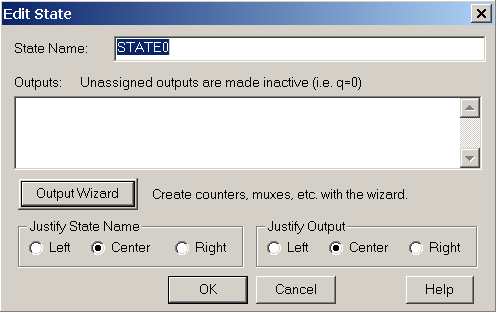
We can change the name of the state in the State Name box.
Output of the state can be described in the output window (
for Moore machines). For the Mealy machine, there is no output
at the states. Hit OK when we finish modifying the state info.
2.7 We can add transitions by clicking the Add Transition button  .
.
When adding a transition, double click on the edge of the starting
state, then double click on the ending state.
2.8 To change the transition information, double click the transition
edge. The following window should appear.
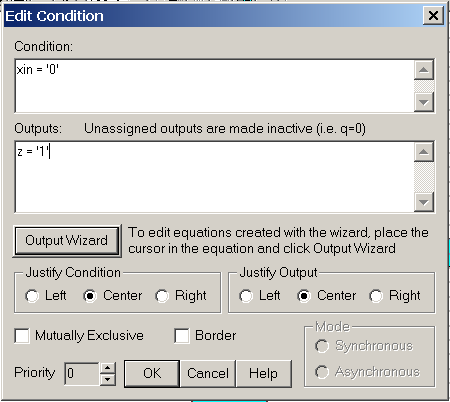
We can input the condition for the transition in the Condition
window ( xin = '0' is shown, in which xin is the input signal X.
X is a reserved word. So I rename input X as xin here). Output
on the transition can be specified in the Outputs window.
(Z = '1' is shown, assuming this is the edge from S2 to S3).
Hit OK when done.
2.9 The final Mealy machine state diagram looks like the following:

3.1 Configure the VHDL Compiler
Click on Options->Configuration. The following window appears.
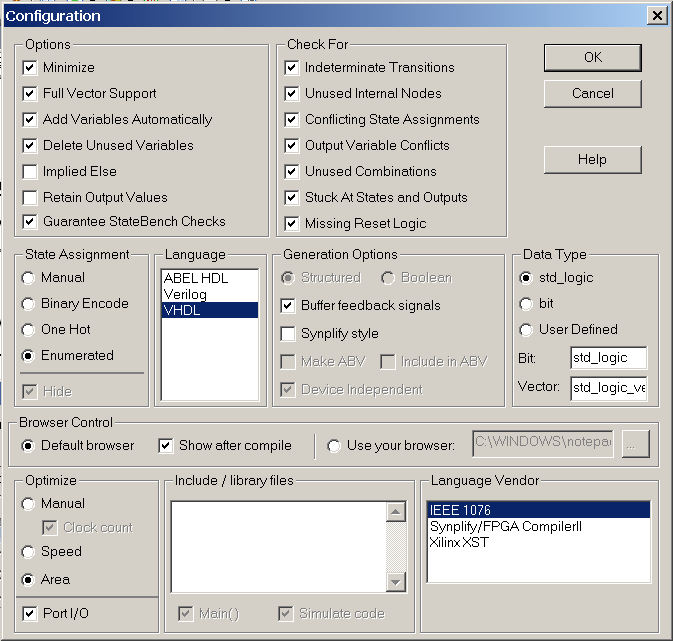
Make sure to 1) check Enumerated in the State Assignment; 2) highlight VHDL
in the Language list; 3) highlight IEEE 1076 in Language Vendor. Click OK to
close the window. Save the state diagram.
3.2 Generate the VHDL codes. Hit the compile button  .
.
If the compile is successful, the following dialog appears.
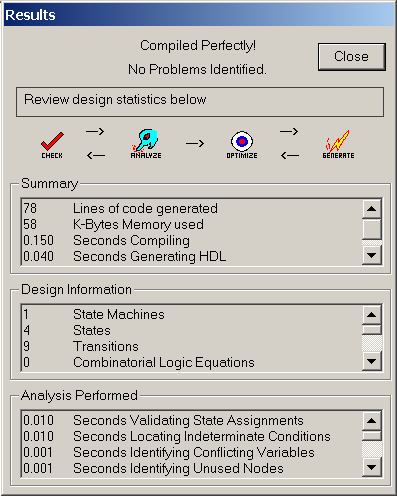
Hit Close and the following window with the VHDL code appears.
The VHDL code is stored in a file MEALY.vhd in the current project
directory.

Add the VHDL source file generated by StateCAD (MEALY.vhd) into your project.
In Xilinx ISE,
click Project->Add source. Highlight the MEALY.vhd file, then click open.
The following window appears.

Highlight VHDL Design File and click OK.
Now the VHDL design of the state machine should be include in the project as
follows:
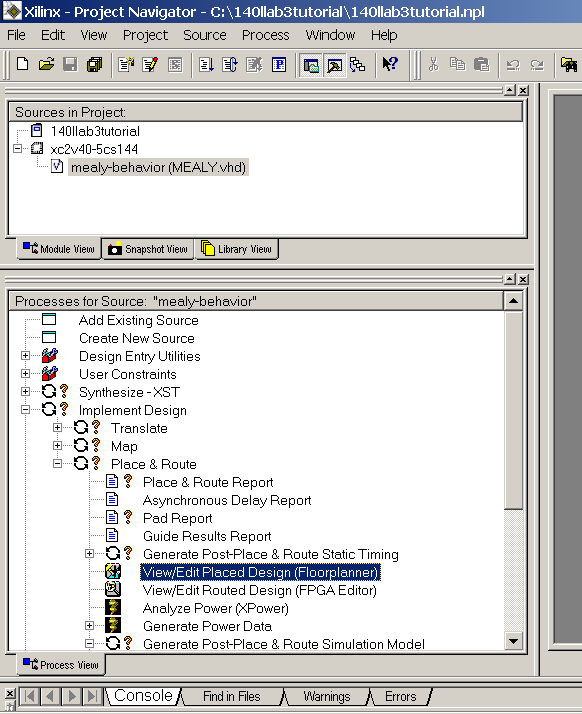
5.1 Highlight the MEALY.vhd row in the source window. Navigate in the Process View
window to Implement Design->Place & Route-> View/Edit Placed Design
(Floorplanner). Click on the row.
The Xilinx tool goes through synthesis, translate, map, and place & route. When
the implementation is done, the floorplanner window shows up with the
placed design as follows:
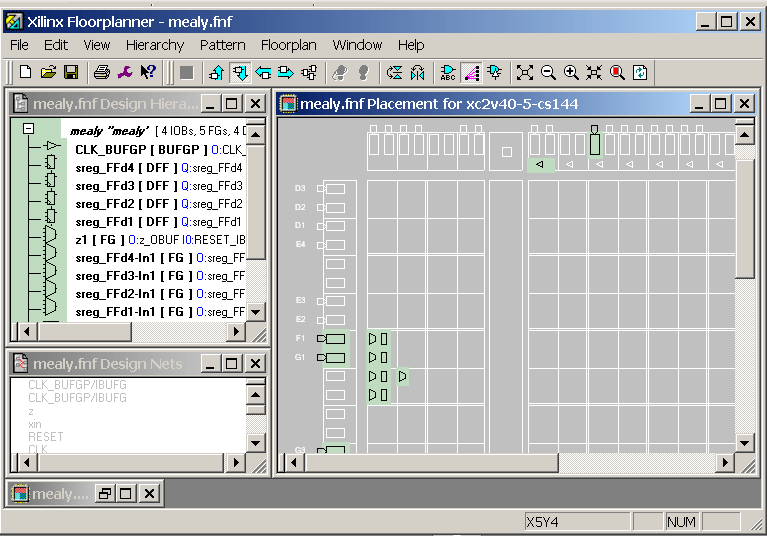
Zoom in to check the design. Note that the implementation consists of 4 flip-flops
(green rectangles), and 5 combinatorial logic units (green trapezoidals).
5.2 Check the logic block usage in the synthesis report. Navigate in the Process View
window to Synthesize-XST-> View Synthesis Report. Click on the row. The report
should show in the right area. The ISE window looks like this:
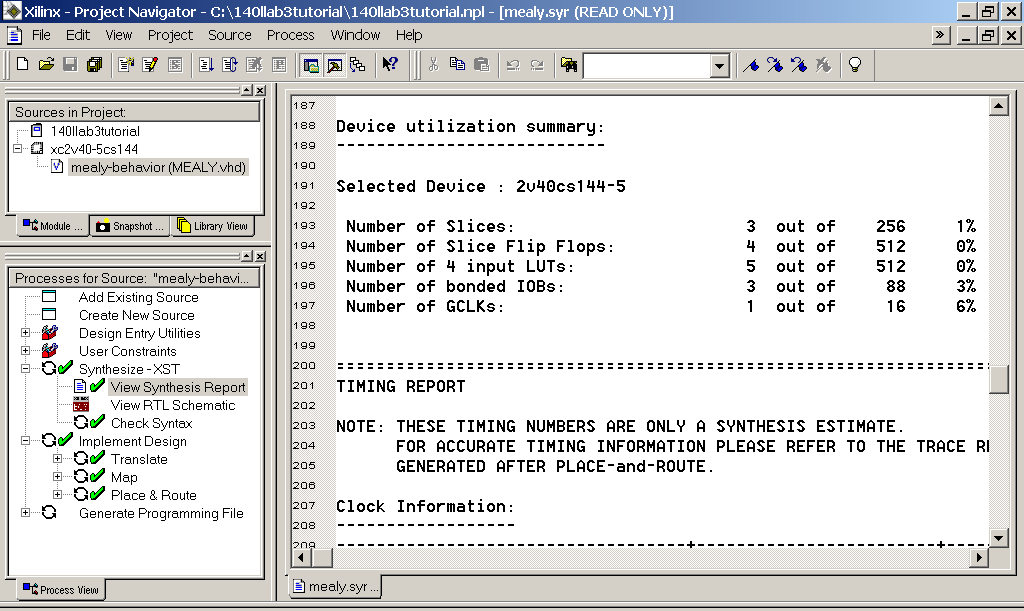
Scroll to the Device utilization summary section and check how many of each
elements are used. Note that the numbers agree with that in the floorplanner view.
This step is similar to what we have done in Lab 1 and 2. Create a test bench
wave form, then simulate it in the ModelSim. Make sure to set the RESET signal
as 1 for 1 or two clock cycles in the begin of the simulation to initialize the
state machine.
Two modifications are needed for the Xilinx tool to honor manual state encoding.


Implement the state machine with different state encodings.
Check the synthesis report to see if there are changes in the
logic utilizations.