Open up Xilinx Project Navigator and create a project
- Under Windows XP, go to Start->All Programs->Xilinx ISE 6->Project Navigator
- Click on File->New Project
- Type in a Name (ie Full Adder)
- Select in Schematic for Top-Level Module Type, and click next

- Select in Virtex2 for Device Family
- Select in xc2v80-5cs144 for
Device
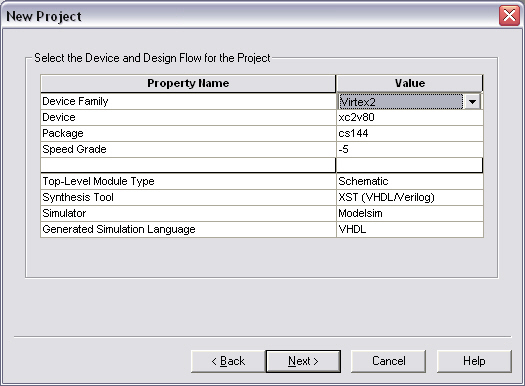
- Make sure Modelsim is selected as Simulator
- Click next and finish the wizard
- We will be building a Full Adder out of two Half Adders. The logic for a Half Adder is as follows:
- Create the Schematic for the Half Adder
- Go to Project->New Source
- Select 'Schematic' and give a filename (ie half_adder)

- After clicking Finish, the Schematic Editor will start.
- Click on the Add Symbol button (
 ) and the Symbol Side
Bar should appear.
) and the Symbol Side
Bar should appear. - Select an xor2 gate by finding it in the side bar under "Logic" category and clicking once on it.
- Move your mouse on to the canvas area and see how the item you selected is dragged along with it.
- Click once again to place it on the canvas
- Do the same again for an and2 gate
- Now select the wiring tool (
 )
) - Draw the appropriate wire connections between the gates and leave excess wire
for input and output connections.

- Now select the Add I/O Marker tool (
 )
)
- Select the option that says "Input" and then click near the two wires on the left hand side of the drawing.
- Next select the option that says "Output" and click near the two wires on the right hand side of the schematic.
- After you have drawn all the IO Connectors, now double click on each of them
and give them appropriate names (ie. A, B, S, Co).

- Now we have to make this a symbol in itself so that we can use it to build the Full Adder.
- Click on Tools->Symbol Wizard
- Use current schematic "half_adder" and Pin Name Source
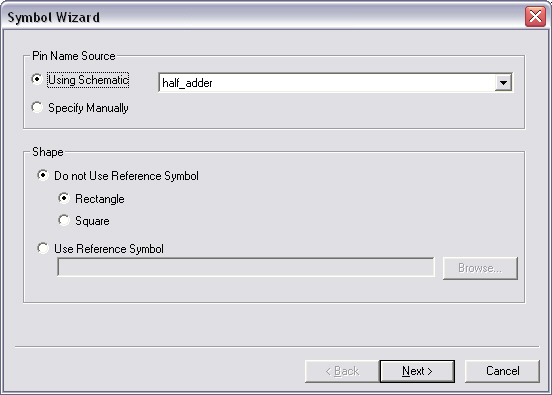
- Use all other default values, and make sure that the inputs and outputs are correctly labeled

- Create the Full Adder
- Close down the HA schematic
- Create a new schematic by going to Project->New Source and selecting schematic and naming it full_adder.
- When the new schematic editor opens and you click on the Symbol Tool (), you should see your Half_Adder symbol that you just created under the work directory.
- Click on that and bring two instances of it on to your drawing.
- Now to complete the Full Adder, you just have to wire the inputs and outputs
correctly, add the appropriate IO Connectors and then simulate to make sure it
is right.

- Always save the schematic before you simulate.
- To print out your schematic, go to File->Print Setup and choose the appropriate paper size and then go to File->Print and it should print out for you.
|
A |
B |
S |
Co |
|
0 |
0 |
0 |
0 |
|
0 |
1 |
1 |
0 |
|
1 |
0 |
1 |
0 |
|
1 |
1 |
0 |
1 |
The logic turns out to be: S = A xor B; Co = AB
- The first thing you have to do before you can simulate is to create a Test Bench. Back at the Project Navigator, select Project->New Source and select Test Bench Waveform.
- Give it a name (ie. beh_sim_tbw) and hit Next

- Associate the test bench with the target design "full_adder".

- Hit Next and finish the wizard. On the next popup select "Combinatorial" for Clock Information.
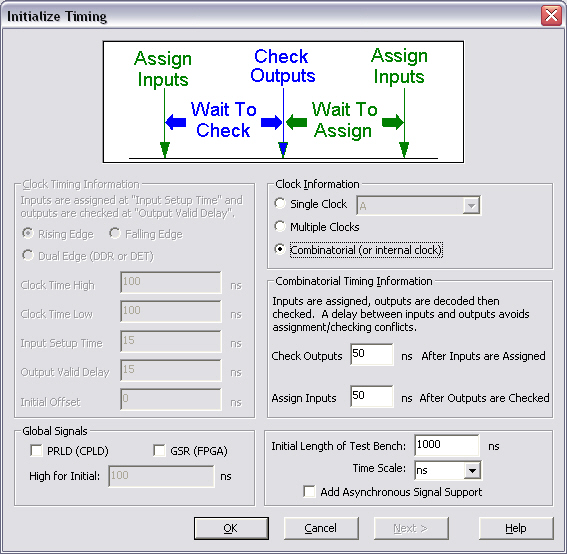
- Next, a window will pop up with all of your signals (inputs and outputs).
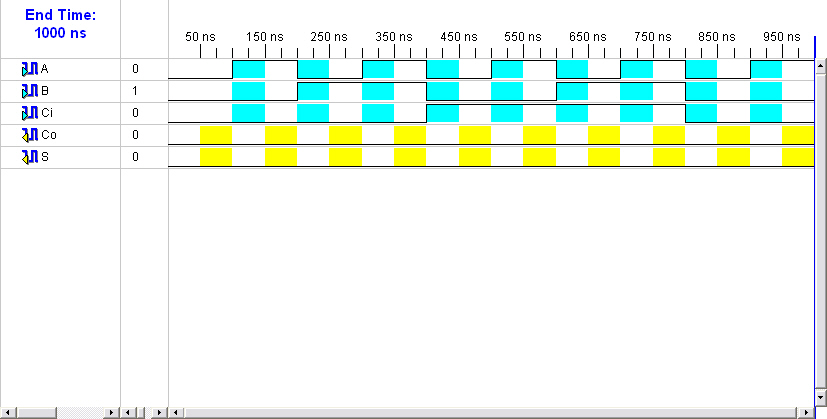
- By clicking on the lines of your input signals at different times, it will
change the value of that particular signal. Making sure that you go through all
the possible combinations for inputs, your window should look close to the
following:
- Hit Save and back at the Project Navigator window, make sure you have the Test Bench Waveform file that you just created selected, or click on it to select it.
- In the option pane below that, now select
SimulateBehavioral Model(double click on it)

- This will start Modelsim to simlate the behavior of the design and show the output values.

- Make sure that the values are correct, otherwise go back and make sure your schematics have been properly implemented.
- Close ModelSim after the signals have been verified.
- To implement the full_adder design, click on the full_adder.sch in the Sources window, then Implement Design will appear in the underlying Processes window.
- Double click on Implement Design, the full_adder will be implemented automatically.
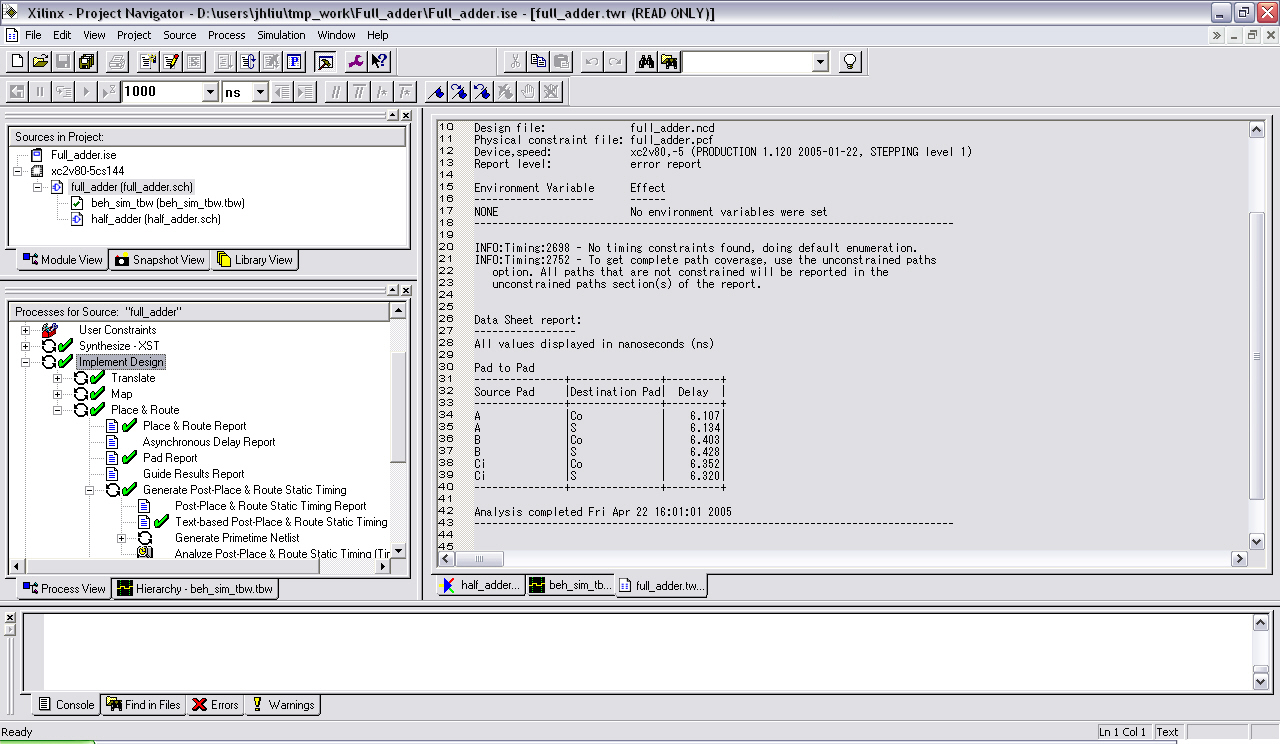
- To see the timing report, go to Implement Design->Place&Route->Generate Post-Place&Route Static Timing->Text-based Post-Place&Route Static Timing Report. The timing report will be shown in the right window. From the timing report, we find out the critical path is from B to S, the delay is 6.428ns.
- Create a new test bench (delay_sim_tbw.tbw) to test the delay from B to S. All other inputs A and Ci keep unchanged.
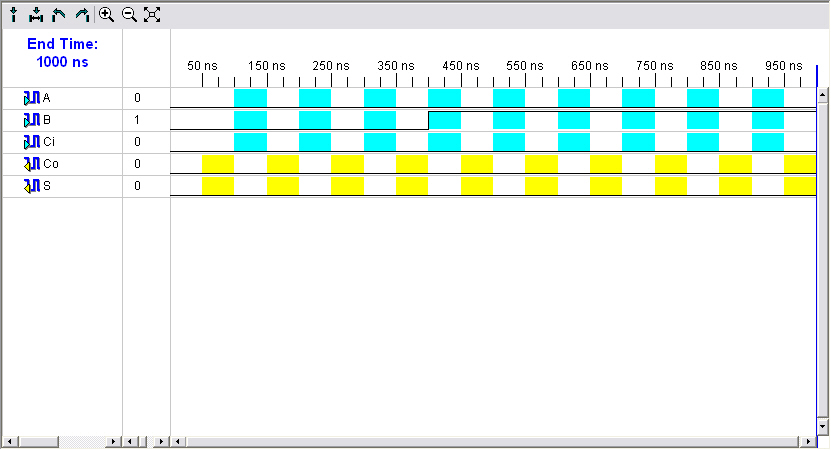
- Click on the test bench file in the Sources window, and double click on Simulate Post-Place&Route VHDL Model in the Processes window. Modelsim will start and show the delay from B to S, which agrees with the delay in the timing report.
