 FtoC.zip
You are welcome to use whatever computer and/or compiler you have available to do any of the programming assignments in this course. We will, however, only guarantee to be able to give you help with the "official" class develoment environment, which is Microsoft Visual C++ on the lab NT computers.
Microsoft Visual C++ is a professional development tool that can be (and is) used to build complex computer programs. As such, it is a bit of overkill for this kind of course, and is definitely intimidating for someone who has never programmed before. It does not try to simplify or hide complex concepts, and we have to find a way to work around its complexity and get our simple projects done.
Visual C++ works with a hierarchical approach to organizing your programs. When you build a program in Visual C++, you must have a workspace, containing one or more projects. Each project can contain the code that is built into a separate program (or various other things - we won't worry about that now). So before you can compile and run a program, you must create a workspace and a project.
I have done this for you, and put everything you need into a zip file you can download and use. Download it by clicking on the following link:
When you unpack this archive, extract the files to your H: disk (if you don't have a drive named H:, you probably forgot to log in), in a folder named H:\Homework\HW1 with the filename "FtoC.zip" (without the quotes).
If you look in H:\Homework\HW1 you should see the following files:
Start Visual C++ and open the workspace file (FtoC.dsw). You can do this the long way (run Visual C++, select File->Open Workspace..., and then open the file FtoC.dsw), or you can just double-click on the file FtoC.dsw in the NT file explorer. Either way, you should end up with Visual C++ running with the workspace open, and a single source file named ftoc.cpp open (it should appear as just an empty window with the label "ftoc.cpp" on the top title bar).
You are now ready to type your program in. Copy the program text from the assignment page and check it for typos or errors.
When you are ready to compile your program, click on the Build button, which
looks like this:  .
Your program should compile, and you will see any errors listed in the window
at the bottom of the screen. If you have no errors or warnings, you will see
this message:
.
Your program should compile, and you will see any errors listed in the window
at the bottom of the screen. If you have no errors or warnings, you will see
this message:
FtoC.exe - 0 error(s), 0 warning(s)
If there are any problems, one or both of the numbers will be non-zero, in which case you should try to figure out where the problems are. Scroll up in the lower window to see the error messages, and double-click on the error messages to have Visual C++ show you what line it thinks the problem is on. It often can't tell for sure, so it may flag the line after the one where the problem is. For example, if you forget a semicolon (;) at the end of a line, Visual C++ will show the next line as the one where the error occurred.
Once you have all the errors fixed and the program compiles without problems,
you can run it. Do this by clicking on the Execute button, which should be near
the Build button and looks like this: .
A window should open and show you the output of your program.
.
A window should open and show you the output of your program.
The assignment asks you to create a file named ftoc.txt that contains the output.
The easiest thing to do is to copy the text from the output window into a text
file. To do that, first go to your output window to copy the output. This gets
a little involved, so try to follow these directions... Click the right mouse
button (i.e. right-click) inside the colored title bar at the top of the output
window. You should see a menu pop up, and one of the choices should be Edit,
which should open another little menu on which there's a choice named Mark.
It should look something like this: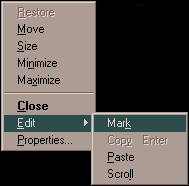
Now go back to the Visual C++ window. Create a new file using the Visual C++
editor by clicking on the new file button in the upper left of the window. It
looks like this:  .
When you do that, you should get an empty window named text1 (or text2, or whatever).
Now paste your copied output into the new window by clicking inside the window,
and the selecting Edit->Paste. You should see your output appear inside the
text1 window.
.
When you do that, you should get an empty window named text1 (or text2, or whatever).
Now paste your copied output into the new window by clicking inside the window,
and the selecting Edit->Paste. You should see your output appear inside the
text1 window.
Finally, save this file by choosing File->Save and giving it the filename ftoc.txt. Make sure it's being saved into your H:\Homework\HW1 directory.