Using Gitlab
For this quarter, starter code for each of the programming assignments should be hosted on a git repository on UCSD’s git server: https://git.ucsd.edu. This is where each of the programming assignments will be retrieved from. In addition, you will be required to develop your assignments using git and this will also act as your turnin. When you finish your assignment, your work will be downloaded from your Gitlab repository and graded. Therefore, you should allocate some time to familiarize yourself with git and Gitlab well before the assignment due date.
The following instructions have references to "pa1" for programming assignment 1. Replace all instances of "pa1" to "pa2", "pa3" etc. based on the programming assignment you are working on.
Git Tutorials
Git is a distributed version control system that is used when developing software in industry and is a very powerful tool. If you are not familiar with git, you can check-out a quick tutorial here: https://www.atlassian.com/git/tutorial/git-basics.
This is in addition to the assigned reading for Git in class.
Preparing your Git Environment
The following steps are intended to be performed on the Bang server.
For git to work correctly, a proper .gitconfig
file will need to be defined. This file stores your information such as
name, email, and other git related specifics. We will be focusing on a
small subset of configuration details to get you up and running quickly.
To start, you should sign into one of the lab machines running linux (NOT WINDOWS) and launch the terminal application. We will not be holding your hand on how to open the terminal emulator. You are CS majors and should be able to figure this out. :) Log in to Bang by using:
ssh username@ccom-bang-login.ucsd.edu
The file we are about to configure can be found in your home directory ~/.gitconfig
after we have completed the steps below. You should make a backup of
this file as it can be used on any machine where you will be using
git—even for future classes. Git comes with a tool called git-config
that lets you get and set configuration variables that control all
aspects of how Git looks and operates. You will be using this tool to
define some global configuration settings. By defining these settings
globally, they will apply to all your git projects for this class as
well as other classes.
At the command prompt issue the following commands:
                    git config --global user.name "John Doe"

                    git config --global user.email johndoe@example.com

                    git config --global core.editor vim

                    git config --global merge.tool vimdiff
Yes you should replace John Doe as well as his email with your name and email -- and please don’t email John Doe.
Once you have entered the commands above, you should verify that you spelled everything correctly. Actually, you should have done this before pressing enter, but just in case, you can do this via the following command:
git config --list
If you made a mistake, simply reissue the command above that you entered incorrectly with the corrections made and it will overwrite the previous setting. Tip: To avoid being stuck at this step indefinitely, at some point, you are going to want to stop making mistakes.
Setting up SSH keys
This step is optional, but we recommend you to do it so you can avoid entering your password every time you clone/push/pull your code. If you setup SSH keys, you can replace the link to access your repository by the SSH link (we annotated the steps where you can do this).
Please follow the steps in https://git.ucsd.edu/help/ssh.
Creating your Repository
In order to start your assignment, you MUST create a repository in the CSE260-fa15 group. The easiest way to do so is to create your repository following the instructions below: If you are working with a partner, ONLY ONE OF YOU should perform this step.
- Go to https://git.ucsd.edu/groups/cse260-fa15. Click the green New Project button. (If you cannot access the group, or if the New Project button is not available, it is probably because the staff has not yet added you to CSE260-fa15. In this case, please send an email to one of the TA’s so they can add you to the group)
- The project name should include your username and the number for this programming assignment. For example, if your name is
Quentinand your username isqkgautie, then you should name the repository:pa1-qkgautie. If you are working with a partner, and his name isYashodanand his username isykarandi, you should name the repository:pa1-qkgautie-ykarandi. You could also name the repositorypa1-ykarandi-qkgautie.
Make sure that the names are your username and not your actual names. Your repository name should not contain any spaces! - Click the "Import Existing Repository" link, which
is directly below the namespace drop-down list, and paste the
starter-code repository location exactly as it appears:
https://git.ucsd.edu/cse260-fa15/pa1-provided.git.
Make sure it starts withhttps://and ends in.git - Ensure the namespace is
cse260-fa15. If the repository is not in this namespace, your code will not be accessible by the professor. - Description is optional
-
Make sure the visibility level is Private. This is very important, because otherwise your code will be visible to everyone.
At this point, your screen should look something like this:
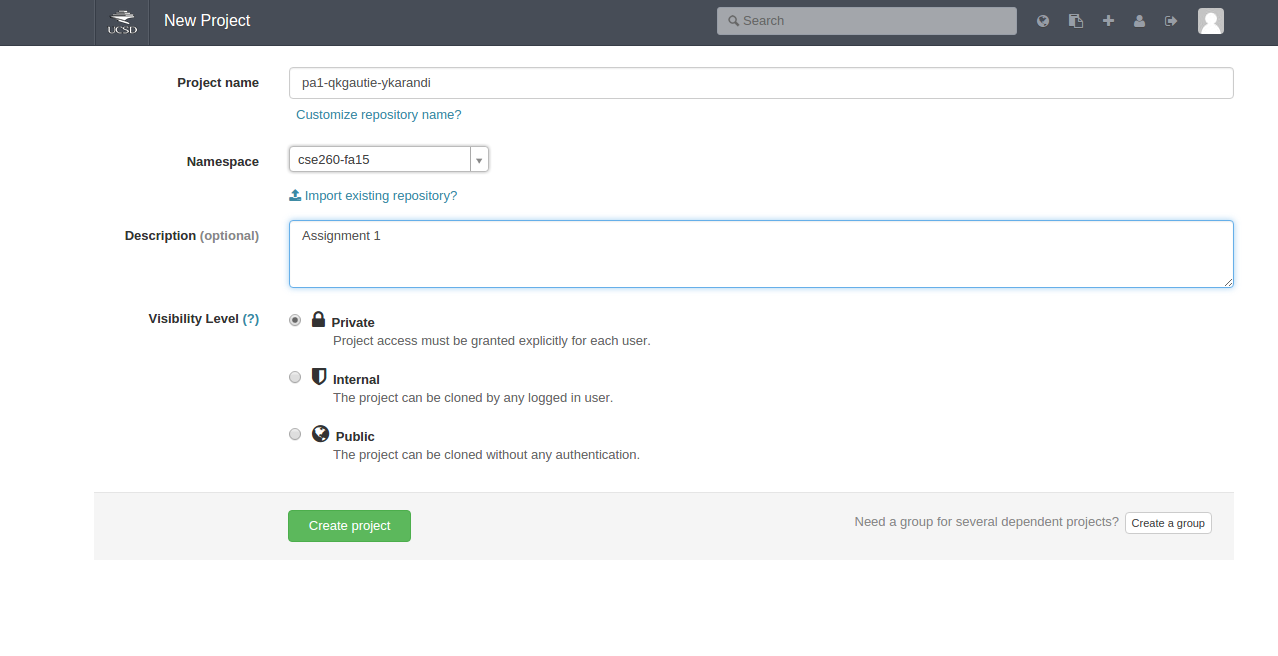
Double-check that the project name contains the text pa1 followed by your username, the namespace iscse260-fa15, you are importing the correct repository, and that the visibility level is set to Private. - Finally, click the Create Project button.
-
It should take less than a minute for your
repository to be created. Once your repository is created, you should be
able to clone the repository using the command:
git clone https://git.ucsd.edu/cse260-fa15/pa1-ykarandi.git
or, with SSH keys:
git clone git@git.ucsd.edu:cse260-fa15/pa1-ykarandi.git
Replacepa1-ykarandiwith YOUR repository name. Also note that this is case-sensitive, so your repository name should be in all lower-case letters.
You'll be prompted for your username and password. Enter your credentials that you use to login into git.ucsd.edu.
Note: if you encounter an error of the formGtk-WARNING **: cannot open display: error: unable to read askpass response from '/usr/libexec/openssh/gnome-ssh-askpass', you can safely ignore this error. If you would like to suppress it, add the following line:
unset SSH_ASKPASS
to the end of~/.bashrc, and then run
source ~/.bashrc
to apply the modification. -
Sometimes updates will be made to the starter code
after you have already cloned the repository. To retrieve these updates
run the following command INSIDE the directory you just cloned.
git remote add starter https://git.ucsd.edu/cse260-fa15/pa1-provided.git
When updates are announced, get the updates with the following command:
git pull starter master. -
To test that you have the correct permissions on the
repository, you may make a modification to README, then run:
git add README
git commit -m "Test Modification"
git push origin master
If you are working with a partner, go to: https://git.ucsd.edu/cse260-fa15/[your repo name]/team and click new project member.
From there you can add your partner to the repository. Once added, they
should be able to clone the repository on their own machine.
Alternate way to create your repository
You can also import the provided code manually. In this case, follow the instructions 1 and 2 above, SKIP 3, and 4 to 7. At this point log in to Bang and type:
					$ git clone --bare git@git.ucsd.edu:cse260-fa15/pa1-provided.git

					$ cd pa1-provided

					$ git push --mirror git@git.ucsd.edu:cse260-fa15/pa1-username1-username2.git

					$ cd ..

					$ rm -rf pa1-provided
If you are not using SSH keys, replace the links by the https links.
Then you can follow the rest of the instructions (from 8).
Working on your Code
At this point, ensure that both you and your partner can
access your newly created repository. Whenever you push to the
repository, you should be able to view your changes online at: https://git.ucsd.edu/cse260-fa15/[your repo name].
At any time, you can view the version of the code that the instructor will download at: https://git.ucsd.edu/cse260-fa15/[your repo name]/repository/archive.tar.gz.
Renaming your Repository
If you need to rename your repository, please follow these instructions:
-
First, go to the edit page for your repository at:
https://git.ucsd.edu/cse260-fa15/[your current project name]/edit
For example, if your current repository name is pa1-zack, then you would go to:https://git.ucsd.edu/cse260-fa15/pa1-zack/edit. -
In the textbox next to "Project name", please enter the correct repository name. Remember that your
project name should be in the format
pa1-[your ACMS username]if you are working by yourself, orformat pa1-[your ACMS username]-[your partner's ACMS username]if you are working in a pair. - On the bottom of the screen click the blue "Save changes" button.
- Now, go to the "Dangerous Settings" area at the bottom of the page, and click the "Show it to me" button. Scroll down to the "Rename Repository" section.
-
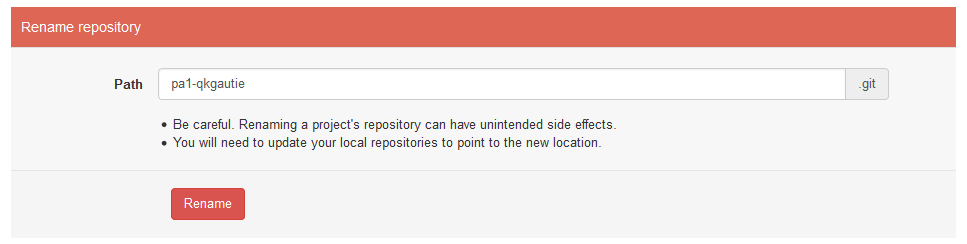
In the "Rename repository" section, set the Path
textbox with the same text that you used in the Project Name textbox.
For example if the correct name for your repository
is
pa1-qkgautieit should look like the picture below:
- Click the red Rename button.
-
If you have already cloned your repository, you must run the following command inside the cloned repository
folder in order to point your local repository to the remote location:
git remote set-url origin https://git.ucsd.edu/cse260-fa15/[your project name].git
For example, if your new repo name is pa1-qkgautie, you would use the following command to rename your repository:
git remote set-url origin https://git.ucsd.edu/cse260-fa15/pa1-qkgautie.git.
Or replace the https link by the ssh link if you cloned using SSH.
Deleting Your Repository
If you need to delete your repository, simply rename it as paX-delete, following the instructions in the previous section. The tutors will delete all repositories with the keyword 'delete' for you. You don't have to wait for your repository to be deleted after you have renamed it, to start working on a new one.